
Home » Free Arcade Cabinet Plans & DIY Build Instructions
Free Arcade Cabinet Plans & DIY Build Instructions
Build your own arcade cabinet with easy-to-follow plans, practical instructions and expert tips backed by 40 years of arcade-building experience
These free arcade cabinet plans and building notes come straight from my workshop and have been tested and refined over the years. They’re designed to help you avoid common mistakes, choose the right materials, and get your cabinet right the first time
Free Arcade Cabinet Plans & Blueprints

Plans Refined Through Real-World Builds
With more than four decades of experience designing and building arcade machines, I’ve learned which methods work best — and which ones to avoid. This guide focuses on proven techniques that save time and materials.
Each plan has been refined to balance compact cabinet dimensions with authentic screen size, aspect ratio, and control layout.
What’s Included in the Free Arcade Cabinet Plans
Inside this guide, you’ll find:
- Printable blueprints for bartop and vertical arcade cabinets
- Complete cut lists for cabinet panels and control layouts
- Recommended tools and materials
- Step-by-step cabinet assembly instructions and practical wiring guidance
I’ve also included practical tips to help you customize your machine, whether you’re building a compact one-player bartop or a two-player arcade cabinet.
For more detail on hardware, monitor setup, common DIY mistakes, and front-end options, see my complete guide on how to make your own arcade machine.
With a little patience and care, you’ll soon have an arcade machine you can be proud to say you built yourself.

Compact Design, Authentic Arcade Feel
My goal with each arcade cabinet design was to make it as compact and lightweight as possible without losing the feel of a real arcade machine. This saves valuable space while preserving the correct screen size, aspect ratio, and control layout for an authentic playing experience.
Bartop and Vertical Arcade Cabinet Blueprints
The guide includes detailed blueprints for several cabinet styles, including two-player bartop arcade machines, one-player mini bartops, and full vertical arcade cabinets.
This gives you the freedom to choose a design that suits your available space, preferred games, and playing style.
Materials, Tips and Practical Building Advice
Over the years, I’ve experimented with many different materials, and for my own arcade builds I now prefer rigid PVC foam board. It is strong, lightweight, easy to work with, and extremely durable over time.
Unlike MDF and other wood-based materials, it does not absorb moisture or swell, and its UV-resistant surface helps prevent discoloration over time, making it an excellent choice for arcade cabinets that are built to last.
MDF is my second choice. It is affordable, widely available, easy to cut and machine, and gives a cabinet the solid weight and feel traditionally associated with arcade machines. Its main disadvantage is long-term durability. If it is not properly sealed, MDF can absorb moisture, particularly around exposed edges, causing it to swell and gradually deteriorate.
For mini replicas and other special projects, the best material can depend on the size, weight, finish, and level of authenticity you want to achieve. Throughout this guide, I’ll share what I’ve learned from working with these materials in the workshop, including the practical differences in durability, weight, ease of working, and authentic arcade feel.
🗂️ Arcade Cabinet Design Variations
| Version | Players | Screen Size | Footprint | Best For |
|---|---|---|---|---|
| Bartop Arcade Cabinet | 2 | 17–19″ (5:4 ratio) | Medium | Two-player retro gaming in living rooms, game rooms, or dedicated gaming corners |
| Mini Bartop Cabinet | 1 | 5–17″ LCD | Small | Collectors, mini replicas, and compact or portable arcade setups |
| Vertical Cabinet | 1–2 | 17–19″ (vertical) | Tall & Slim | Classic vertical shooters and other portrait-orientation arcade games |
✨
Quick Tips
- Two-Player Bartop → The best all-round option for classic arcade gaming, especially when you want to play with friends or family.
- One-Player Mini Bartop → A great choice for collectors, mini replicas, and smaller spaces.
- Vertical Cabinet → Ideal for vertical SHMUPs and classic portrait-orientation games such as Galaga, 1942, and Donkey Kong. Horizontal games can also be included when suitable.
Building Your Own Arcade Cabinet
Building your own arcade cabinet is one of those projects where the building process can be almost as enjoyable as playing the finished machine. You get to work with your hands, make your own design choices, and bring together the controls, screen, electronics, and cabinet into something you’ve built yourself.
From Cut Panels to a Finished Cabinet
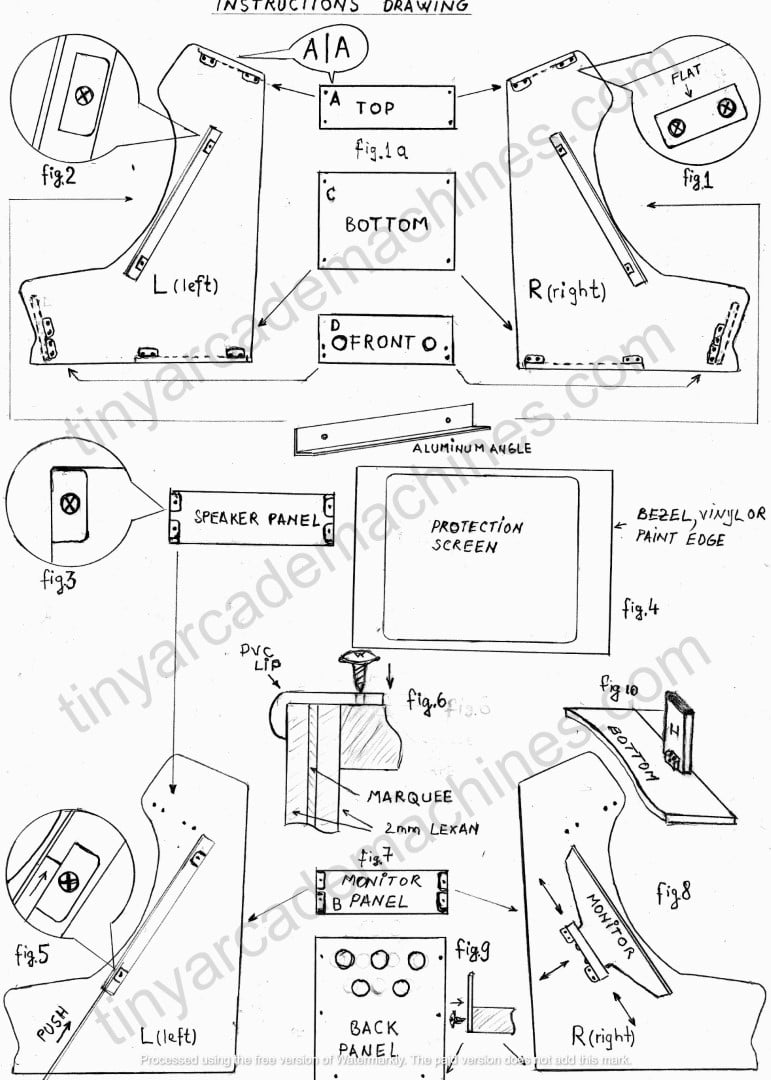
Once you have all the panels and parts prepared, assembly is quite straightforward. The drawing below shows how the main cabinet panels fit together, including the top, bottom, front, speaker panel, monitor panel, back panel, marquee, and monitor supports.
A Great Project to Build Together
You don’t need to be a professional cabinet maker to get started. With basic DIY skills, a few woodworking tools, and some patience, most of the work is straightforward.
It can also be a great project to share with your children, family, or friends. Measuring and cutting the panels, fitting the controls, wiring the buttons, and finally switching the machine on for the first time are all part of the experience.
A Machine You Can Enjoy for Years
The first power-on is always a special moment, but the real reward is having an arcade machine that you can enjoy with friends and family for years to come.
This guide takes you through the plans, materials, tools, assembly, and wiring, so you can spend less time figuring out what comes next and more time enjoying the build.
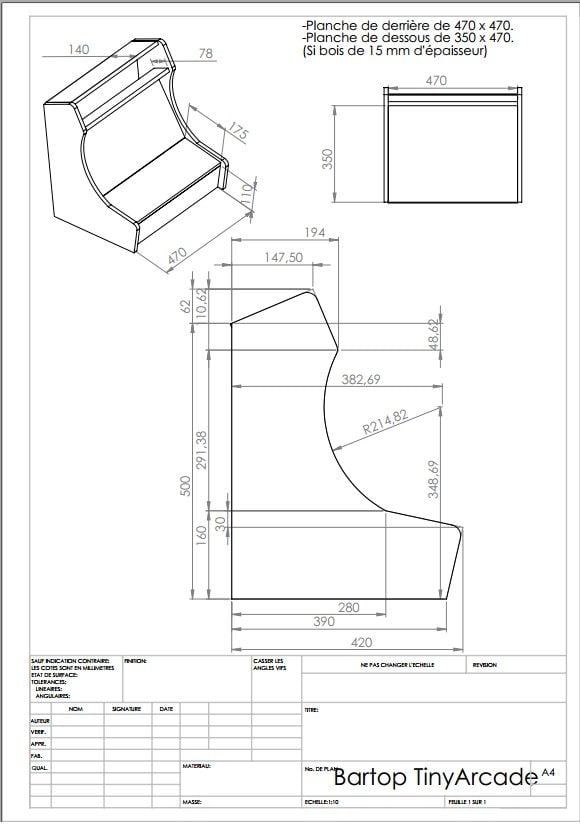
The detailed blueprint below provides the key dimensions for the two-player bartop cabinet and can be used as a reference when marking and cutting the side panels.
The video below shows the assembled two-player arcade cabinet in its raw, unfinished stage, giving you a closer look at the cabinet structure, proportions, and overall design.
How to Assemble Your Arcade Cabinet
Now comes one of the most rewarding parts of the build: putting the cabinet together. Take your time, follow the assembly drawings step by step, and check each panel carefully as you go.
Patience Pays Off
Always measure twice before cutting or fixing the panels in place. Small errors at this stage can affect how well the cabinet fits together, so take your time and check the alignment before securing each piece.

Step-by-Step Arcade Cabinet Assembly
Follow these steps carefully, keep your plans nearby, and check the fit and alignment of each part before securing it in place.
1. Prepare All Panels
- Cut the panels according to the blueprint, or prepare your pre-cut pieces if you are using a kit.
- Label each panel if necessary to make assembly easier.
2. Position the Side Panels
- Lay out the left and right side panels and identify where the internal panels and supports will be fitted.
- Use clamps where needed to hold the parts securely during assembly.
3. Install the Base Panel
- Fit the bottom panel between the two sides.
- Check that everything is square before securing it with screws and, where appropriate, adhesive.
4. Add the Internal Supports
- Fit the internal supports for the back, top, monitor, and other structural panels.
- Check the alignment carefully before fastening them in place.
5. Fit the Control Panel
- Prepare the holes for the joysticks and buttons according to your chosen controls.
- As a general reference, many arcade buttons use 28–30 mm mounting holes, but always check the specifications of your controls before drilling.
- Test-fit the controls before final installation.
6. Install the Monitor Support
- Fit the monitor mounting panel, bracket, or supports.
- Position the screen carefully and make sure it is centered before securing it.
The photos below show how the main cabinet panels, internal supports, and monitor mounting system come together during assembly.


7. Fit the Speaker Panel and Marquee
- Prepare and install the speaker panel.
- Fit the marquee section and allow space for lighting if you plan to illuminate it.
8. Install the Bezel and Plexiglass
- Position the bezel and protective plexiglass in front of the monitor.
- Mask or finish the edges as required to create a clean border around the screen.
9. Wire the Controls and Electronics
- Connect the joysticks and buttons to the encoder.
- Route the wiring neatly and secure loose cables.
- Test the controls and electronics before closing the cabinet.
10. Fit the Back Panel and Finishing Trim
- Install the back panel and provide adequate ventilation for the electronics.
- Fit T-molding or other edge trim if your cabinet design uses it.
- Add artwork, lighting, feet, or other finishing details.
Pro Builder Tips
- Dry-fit first. Check how the panels fit together before final fastening.
- Check alignment as you go. Small errors early in the build can become much more noticeable later.
- Don’t assume hole sizes. Measure your actual buttons, joysticks, speakers, and other hardware before drilling.
- Test the electronics before closing the cabinet. Troubleshooting is much easier while everything is still accessible.
- Protect the base. Rubber feet or felt pads help protect both the cabinet and the surface underneath.
Original Two-Player Bartop Arcade Cabinet Assembly Instructions
The following are the original detailed assembly instructions for my two-player bartop arcade cabinet design, first developed more than 25 years ago. Unlike the general assembly guide above, these instructions correspond directly to the labelled panels, fittings, and dimensions shown in the original blueprints.
Please read through all the instructions before starting the assembly.
Step-by-Step Assembly
1. Attach the Plastic Joints
- Screw the plastic joints onto the left (L) and right (R) side panels, following the small dot marks shown on the panels.
- At this stage, fit the joints for the top, bottom, and front panels only.
- Make sure all joints are positioned with the flat surface facing outward.
2. Fit the Aluminum Angle (F)
- Position aluminum angle F between the left (L) and right (R) side panels.
- Secure it using two plastic joints on each side.
- Check that it is correctly aligned before tightening the screws.
3. Install Panels A, B, and C
- Fit panels A, B, and C one at a time into the left (L) side panel.
- Make sure each panel is correctly positioned and seated against its plastic joints.
- Once all three panels are aligned, fit the right (R) side panel and secure everything in place.
4. Add the Speaker Panel (G)
- Screw four plastic joints into the marked positions on panel G.
- If you are installing speakers, cut the speaker openings now according to the dimensions of your chosen speakers.
- Position the speaker panel inside the cabinet and secure it in place.
5. Fit the Control Panel
- Attach the control panel using four 4 × 25 mm flanged screws.
- Make sure there are no gaps between the control panel and the left and right side panels.
- Tighten the screws gradually and carefully rather than overtightening them.
6. Install the Control Panel Middle Support
- Position the middle support as shown in Fig. 10.
- Check its alignment with the control panel before securing it in place.
7. Prepare the Monitor Protection Screen
- Remove the protective film from the screen.
- Measure the visible area of your monitor and mark the corresponding opening.
- Mask the centre area and paint the surrounding edges black to create a clean bezel around the visible screen.
- Alternatively, you can use self-adhesive vinyl or a printed bezel design.
- Install the protection screen with the painted or finished side facing inward.
- Slide the bottom edge into the gaps provided by the aluminum angle.
- Tighten the four retaining screws so that the joints press gently against the protection screen and hold it securely in position.
8. Assemble the Marquee
- Remove the protective film from both 2 mm Lexan sheets.
- Place your printed marquee artwork between the two sheets.
- If you want an illuminated marquee, install the LED or other suitable lighting before closing this section of the cabinet.
- Secure the marquee using six 4 × 13 mm screws and the PVC retaining lips along the top and bottom edges.
- Remove the backing tape from the PVC edges and press the marquee assembly carefully into position.
9. Install the Monitor
- Screw four plastic joints onto monitor panel B.
- Attach the monitor to the panel using its rear VESA mounting points, where available. These may be hidden beneath small plastic caps on some monitors.
- With assistance, carefully lay the cabinet on its side.
- Move the monitor towards the protection screen and centre the visible display vertically and horizontally.
- Once you are satisfied with the position, secure the monitor panel to both the left (L) and right (R) side panels.

10. Fit the Chrome Trim
- Carefully remove the protective red film from the trim.
- Make sure the cabinet edges are clean and free from dust.
- Apply a thin layer of clear contact adhesive and allow it to sit for approximately 15 minutes, or according to the adhesive manufacturer’s instructions.
- Press the trim firmly and evenly into position.
- Leave the ends slightly longer than required while fitting, then trim them neatly with a sharp cutter once the trim is correctly positioned.
11. Attach the Cabinet Feet
- Fit the self-adhesive feet to the bottom edges of the left (L) and right (R) side panels.
- Check that the cabinet sits level and stable.
12. Install the Back Panel
- Position the back panel and secure it using six 4 × 13 mm screws.
- Fitting the back panel helps lock the cabinet structure together and adds rigidity to the finished assembly.
Practical Building Notes and Tips
Controls: Choose good-quality arcade joysticks and buttons from manufacturers such as Sanwa, Seimitsu, or Happ. Many arcade buttons use mounting holes in the 28–30 mm range, but always check the specifications of your particular buttons before drilling.
Joystick setup: Depending on the joystick model, the restrictor can often be configured for 2-way, 4-way, or 8-way operation, allowing you to adapt the controls to different types of arcade games.
Control panel: Test-fit all joysticks and buttons before completing the wiring. Where required by your particular mounting hardware, drill the smaller fixing holes with a 4 mm drill bit.
Button access: Design the control panel so that buttons, microswitches, and wiring remain accessible from underneath whenever possible. This makes future maintenance and replacement much easier.
Speaker placement: Treble or full-range speakers generally work best facing towards the player. Bass speakers can be positioned towards the rear if this better suits the cabinet layout.
Extra reinforcement: If required, hot glue can be used around selected internal joints or panel edges as additional reinforcement. It should supplement the mechanical fixings rather than replace them.
Before closing the cabinet: Test the monitor, controls, speakers, power supply, and other electronics while the interior is still easily accessible. Troubleshooting is much easier at this stage.
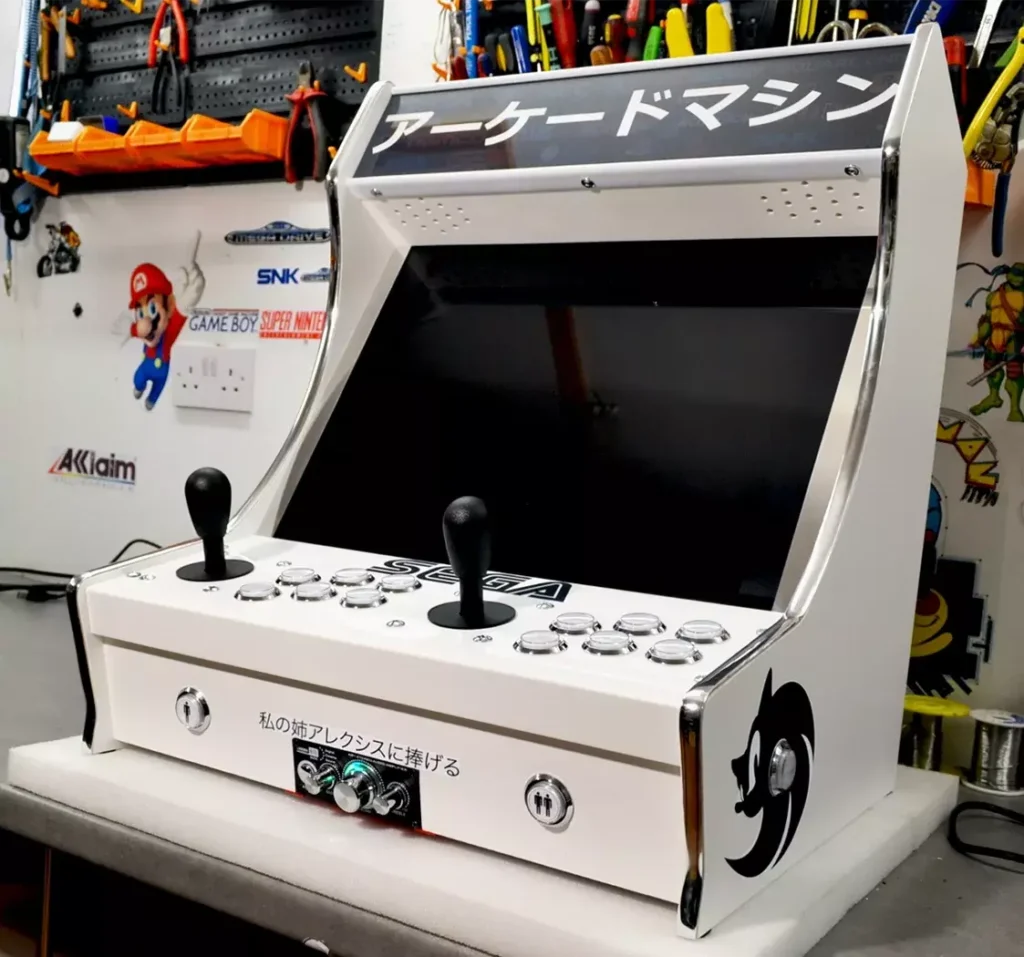
Once everything is assembled and aligned, your cabinet should be ready for the controls, electronics, and final setup. Here’s one of my original two-player bartop cabinets fully assembled and ready for the next stage.
Why Build Your Own Arcade Cabinet?
Building your own arcade cabinet gives you complete control over the design, controls, screen, artwork, and gaming system. You can recreate the classic arcade experience while adapting the cabinet to the space you have available and the games you enjoy most.
It can also be a rewarding project to build with family or friends, combining practical DIY skills with something you can enjoy together for years.
Choose the Cabinet Design That Suits You
The two-player bartop shown above is only one of the designs included in this guide. If you prefer a smaller one-player machine, you’ll also find blueprints and building instructions for both horizontal and vertical one-player arcade cabinets below.
The horizontal design is ideal for traditional landscape arcade games, while the vertical version is particularly well suited to portrait-orientation classics and vertical shooters.
For a compact hardware solution on a mini PC check out the Batocera arcade console for TV, perfect for plug-and-play gaming or DIY arcade cabinet builds.
All Done – Time to Enjoy Your Arcade Cabinet
Once everything is assembled, wired, and tested, this is where all the work pays off. You now have a real arcade machine built with your own hands and ready to enjoy for years to come.
My daughter and her friend have spent many hours playing on this cabinet over the years. For me, that’s one of the best parts of building arcade machines — seeing a new generation enjoying the same games we grew up with.
If you’re building your own, use the free plans and instructions above as a starting point and adapt the cabinet to suit your space, controls, and favourite games.
Then press Start and enjoy what you’ve built.

More Than Just an Arcade Machine
One of the best things about building an arcade cabinet is seeing a new generation discover and enjoy the same games we grew up with. It’s something you can share with family and friends for years to come.

One-Player Arcade Cabinet Plans
Not every arcade cabinet needs to be a two-player build. If you want something more compact, or you’re building a mini replica, a one-player cabinet can be a great choice without sacrificing the authentic arcade feel.
Below you’ll find plans and material lists for two different designs: a horizontal one-player bartop for traditional landscape games and a vertical one-player cabinet for portrait-orientation classics and vertical shooters.
Use the drawings and material lists as a reference when planning your build and before cutting or ordering any parts.
Horizontal One-Player Bartop Arcade Cabinet
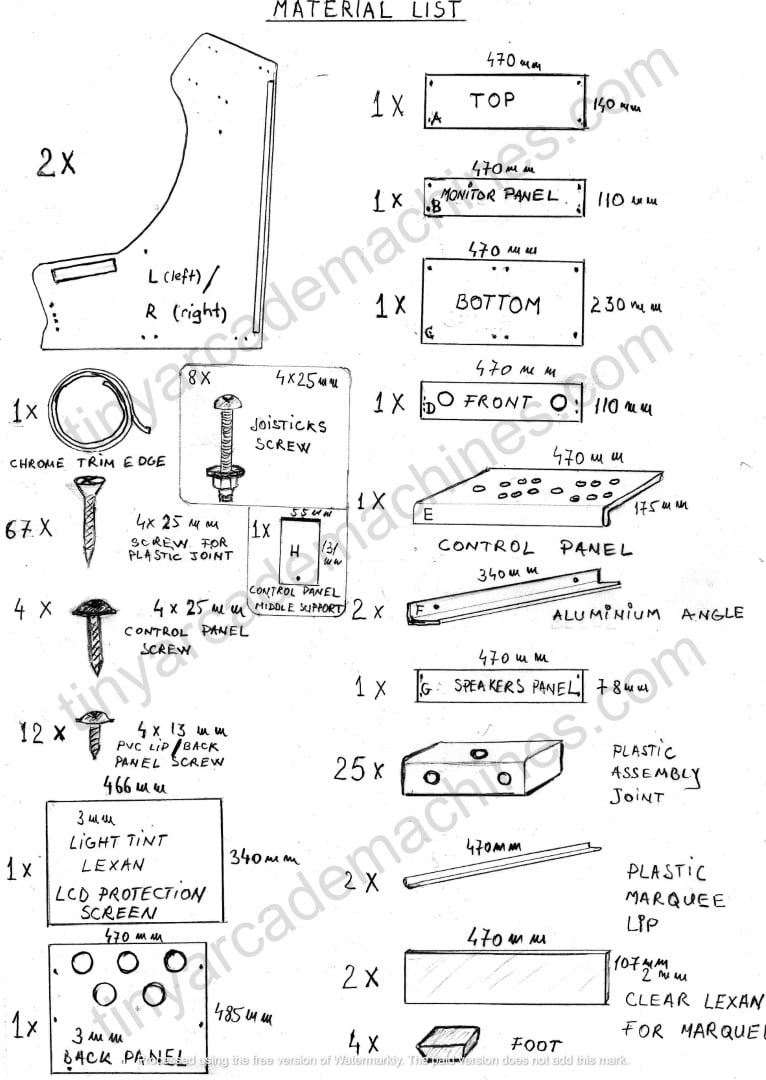
This compact one-player bartop uses fewer parts than the two-player version while keeping the same basic construction method. The drawing below shows the panels, hardware, trim, protection screen, and other parts required for the build.

The drawing below shows how the one-player bartop cabinet fits together, including the side panels, control panel, monitor support, protection screen, marquee, and back panel.

Horizontal Cabinet – Materials Checklist
Ideal for small spaces or collector-style builds, the one-player horizontal bartop keeps the classic arcade feel in a compact format.
- Cabinet Panels – MDF (18 mm) or rigid PVC foam board such as Foamalux (13 mm, density 0.55–0.75 g/cm³, impact resistance ≥10).
- PVC Foam Quality – If using PVC foam board, choose a rigid, high-density product. Very low-density foam board may not hold screws securely and is unsuitable for structural cabinet parts.
- Joystick & Buttons – 1 joystick (Sanwa, Seimitsu, or Happ), 6 action buttons, plus Start and Coin. Many arcade buttons require 28–30 mm mounting holes, so always check your specific controls before drilling.
- Monitor – 17″–19″ LCD with a 4:3 or 5:4 aspect ratio for a classic arcade layout. If using a 19″ monitor, the horizontal cabinet panels will need to be lengthened accordingly.
- Platform – Raspberry Pi, Pandora Box, or mini PC.
- Speakers – 2 small speakers mounted facing the player.
- Edge Trim – Approximately 2–3 m of coloured or chrome trim.
- Screen Protection – 3 mm plexiglass or suitable clear acrylic.
- Finish – Paint or vinyl wrap, with optional custom artwork for the side panels and marquee.
- Electronics – Encoder board, wiring, power distribution, and the required HDMI, USB, and power cables.
Vertical One-Player Arcade Cabinet
The vertical one-player cabinet follows the same basic construction principles but uses a portrait screen layout, making it particularly well suited to classic vertical arcade games and shooters. The photo below shows the cabinet panels, hardware, trim, screen protection, artwork, and other parts laid out before assembly.

Here’s how the vertical one-player cabinet looks once assembled. With the main structure complete, the next step is to install the monitor, controls, electronics, and other finishing components.

Vertical Cabinet – Materials Checklist
Perfect for classic portrait-orientation arcade games and vertical shooters, this design keeps the cabinet compact while providing an authentic vertical arcade layout.
- Cabinet Panels – MDF (18 mm) or rigid PVC foam board such as Foamalux (13 mm, density 0.55–0.75 g/cm³).
- Joystick & Buttons – 1 joystick, 3–4 action buttons, plus Start and Coin. Many classic vertical games use relatively simple controls, but choose the number of buttons according to the games you plan to play.
- Monitor – 17″–19″ LCD mounted vertically in portrait orientation. Check the viewing angles before installation, as some LCD panels perform poorly when rotated. A VESA mount is recommended where available.
- Platform – Pandora Box/JAMMA system, Raspberry Pi, or PC running MAME with a vertical game setup.
- Speakers – Compact speakers mounted to suit the cabinet layout, with an optional small bass speaker if required.
- Edge Trim – Allow approximately 4–5 m, depending on the cabinet dimensions and the edges you intend to cover.
- Screen Protection – 3–4 mm clear or smoked plexiglass/acrylic. Smoked material can help disguise the monitor edges and surrounding mounting area.
- Finish – Paint, vinyl wrap, or custom artwork to suit the vertical cabinet design.
- Electronics – Encoder, wiring, power distribution, required video and USB cables, and optional LED marquee lighting
Pro Builder Tips
-
- Horizontal cabinets: A slight screen angle can make the playing position more comfortable, particularly during longer sessions.
- Vertical cabinets: Check the monitor’s viewing angles in portrait orientation before mounting it permanently. Some LCD panels look noticeably worse when rotated.
- Control panels: Test the joystick and button layout on cardboard or a scrap panel before drilling the final control panel.
Here’s one of my completed one-player vertical arcade cabinets, fully assembled and ready to play.

Horizontal vs. Vertical One-Player Arcade Cabinet
Both designs can make a great one-player arcade cabinet, but the best choice depends mainly on the games you want to play, your preferred screen orientation, and the space available. The table below compares the two designs side by side.
| Feature | Horizontal Bartop (1P) | Vertical Cabinet (1P) |
|---|---|---|
| Cabinet Layout | Compact bartop design for a desk, counter, or arcade stand | Compact one-player design built around a portrait-orientation display |
| Screen | 17″–19″ LCD, 4:3 or 5:4 aspect ratio | 17″–19″ LCD mounted vertically in portrait orientation |
| Best For | Traditional horizontal arcade games, collectors, and compact setups | Portrait-orientation classics such as Donkey Kong, Galaga and 1942, including vertical shooters |
| Controls | 1 joystick + 6 action buttons + Start/Coin | 1 joystick + 3–4 action buttons + Start/Coin |
| Platform Options | Raspberry Pi, Pandora Box, or mini PC | Pandora Box/JAMMA system, Raspberry Pi, or PC with a vertical MAME setup |
| Speakers | 2 compact speakers facing the player | Compact speakers, with an optional small bass speaker |
| Edge Trim | Approximately 2–3 m | Approximately 4–5 m, depending on cabinet dimensions |
| Overall Style | Classic compact one-player bartop | Compact vertical arcade cabinet with a portrait display |
Quick Takeaway
- Choose the Horizontal Bartop if you mainly play traditional landscape-orientation arcade games and want a compact cabinet for a desk, counter, or arcade stand.
- Choose the Vertical Cabinet if you prefer portrait-orientation classics and vertical shooters, with a screen layout closer to the original arcade format.

Here’s the same one-player horizontal bartop once completed and ready to play.
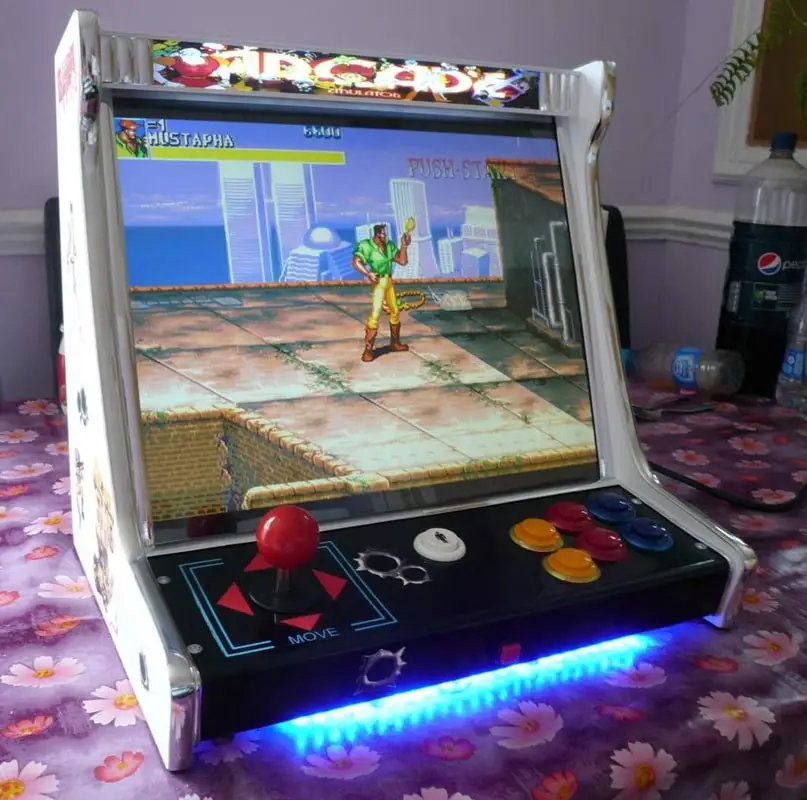
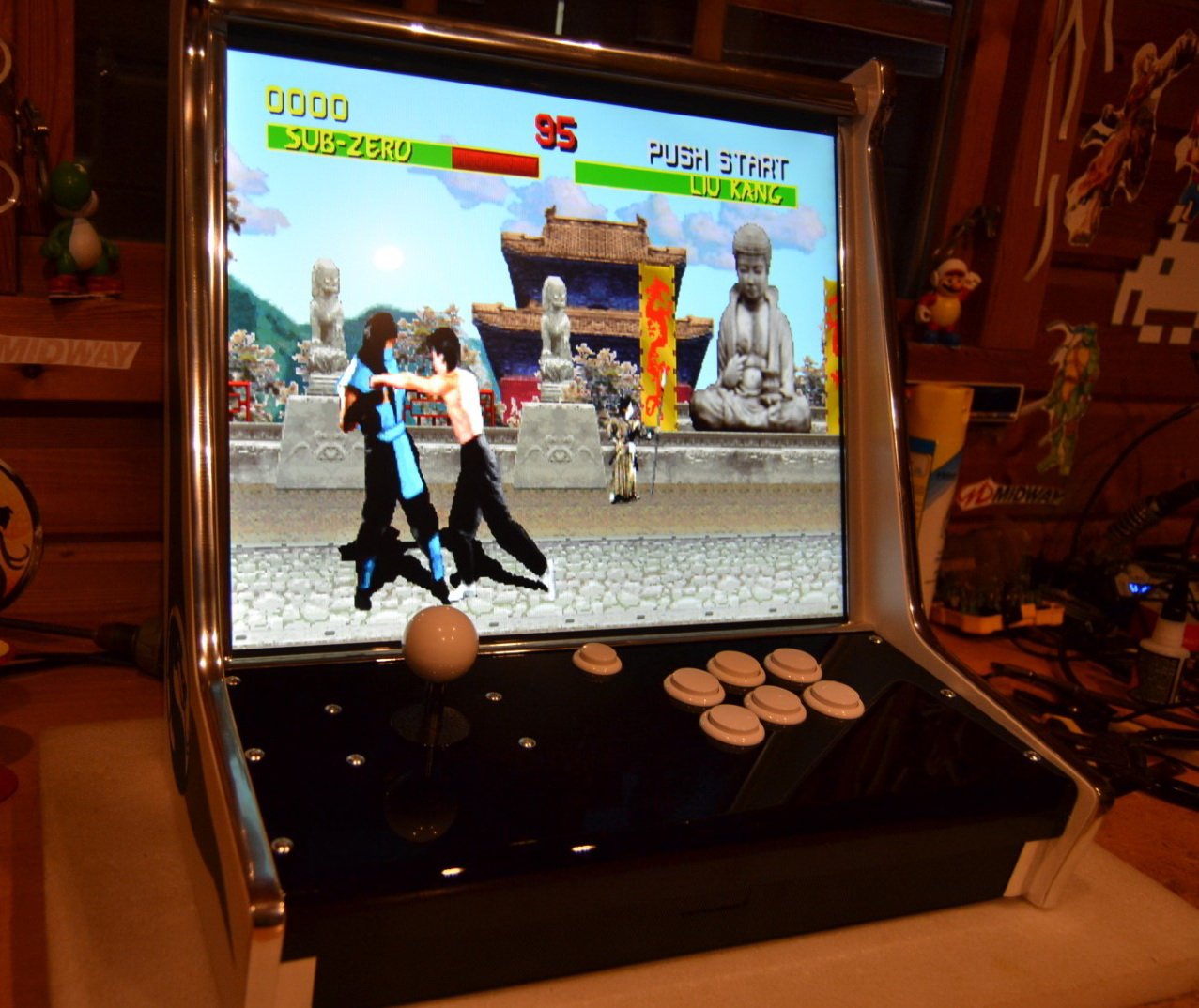
Materials Checklist for Your DIY Arcade Cabinet
The exact materials will depend on the cabinet design, screen size, controls, and gaming system you choose. The list below covers the main materials and components I typically use or recommend when building arcade cabinets, along with practical tips learned from decades of building arcade machines.
Cabinet Materials
- MDF (18 mm) – Affordable, rigid, widely available, and easy to machine. It gives the cabinet a traditional solid feel, but it is relatively heavy and exposed edges should be properly sealed before painting to help prevent moisture absorption.
- Plywood – Often lighter than MDF at a comparable thickness and generally holds screws well. The surface and exposed edges may require additional preparation if you want a completely smooth painted finish.
- Rigid PVC Foam Board – For many of my own builds, I prefer rigid PVC foam board such as 13-15 mm Foamalux. It is lightweight, moisture resistant, easy to work with, and can provide excellent durability when a sufficiently rigid grade is used.
- Typical density: approximately 0.55–0.75 g/cm³, depending on the product and grade.
- Material specification: check the manufacturer’s technical data for the specific board you intend to use.
- Avoid very low-density foam board for structural cabinet parts, as it may not hold screws securely.
Controls and Interfaces
- Joysticks and Buttons – Sanwa, Seimitsu, and Happ are established choices for reliable arcade controls. Select the joystick and button configuration according to the games you intend to play.
- Button Layout – A six-button layout is a versatile choice for many horizontal arcade builds, while classic vertical games often require fewer action buttons.
- Start and Coin Buttons – Include dedicated Start and Coin controls for each player where required.
- Admin Buttons – Optional buttons can be added for functions such as Exit, Pause, or other emulator and front-end controls.
- Encoder – Choose an encoder that matches your control system and platform, such as a keyboard encoder or USB game controller interface.
Display
- Monitor – A 17″–19″ LCD with a 4:3 or 5:4 aspect ratio is a practical choice for many classic arcade builds. A 19″ 5:4 display, typically 1280×1024, works particularly well in compact bartop cabinets and provides plenty of vertical screen area for classic games.
- Vertical Builds – For a vertical cabinet, mount the display in portrait orientation and check its viewing angles before installation.
- VESA Mounting – A monitor with standard VESA mounting points makes installation and adjustment considerably easier.
- Screen Finish – A matte or anti-glare display can help reduce reflections from room and marquee lighting.
Game Platforms
- Pandora Box or JAMMA-Based System – A straightforward option for a dedicated arcade build, particularly when you want a relatively simple plug-and-play setup.
- Raspberry Pi – Compact and flexible, with front ends and operating systems such as RetroPie and Recalbox.
- Mini PC or Desktop PC – Provides considerably more processing power and flexibility for MAME and more demanding emulators, as well as advanced video filtering and front-end options.
Not sure which platform is right for your build? See our Raspberry Pi vs Mini PC guide for a more detailed comparison.
Finishing Materials
- Edge Trim or T-Molding – Traditional T-molding requires a suitable slot cut into the cabinet edge, while other types of decorative edge trim can be fitted without routing.
- Acrylic / Plexiglass – Typically 3 mm or thicker for protecting the monitor area and artwork. Clear acrylic provides maximum visibility, while smoked acrylic can help disguise monitor edges and mounting hardware.
- Paint or Vinyl Wrap – Both can produce an excellent finish. Paint generally requires more surface preparation, while self-adhesive vinyl offers a quick way to add colour or custom graphics.
- LED Lighting – Optional LED strips can be used for the marquee, control panel, or decorative lighting.
Artwork and Decorative Details
- Custom Artwork – Side graphics, marquees, bezels, and control panel artwork can give the cabinet its own identity. High-resolution printed vinyl with a protective laminate is a durable option.
- Marquee – Printed artwork can be mounted between clear sheets and illuminated from behind where required.
- Chrome or Coloured Trim – Can be used around cabinet edges, bezels, and control panels to reproduce the look of classic arcade machines or create a custom finish.
Practical Material Tips
- Buy a little extra material. Offcuts are useful for test cuts, drilling, mounting brackets, and correcting mistakes.
- Seal MDF edges carefully. Exposed MDF edges absorb paint and moisture much more readily than the faces.
- Test your control layout first. Make a cardboard or scrap-material template before drilling the final control panel.
- Measure the actual controls before drilling. Button and joystick mounting dimensions vary between manufacturers and models.
- Test-fit the monitor before finishing the cabinet. Check screen position, viewing angle, bezel clearance, and access to the monitor controls.
- Test adhesives on an offcut first. Some adhesives, paints, and solvents can damage PVC foam board, acrylic, or printed artwork.
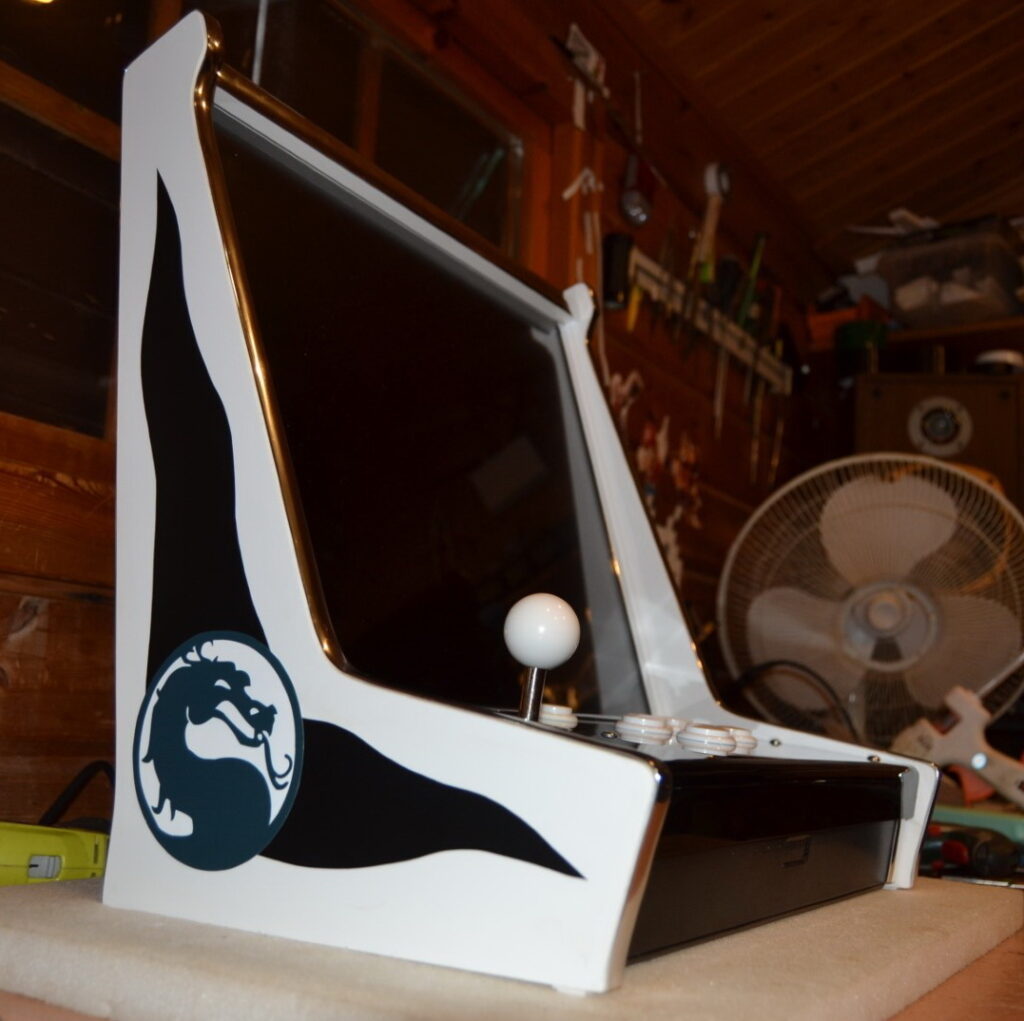
Tools You’ll Need to Build an Arcade Cabinet
Before you start cutting and assembling the cabinet, make sure you have the right tools ready. Accurate measuring, clean cuts, and proper preparation will make the assembly much easier and help the finished cabinet fit together correctly.
Measuring and Marking Tools
- Tape Measure – Essential for checking panel dimensions and cabinet measurements. Use the same measurement system throughout the build to reduce the chance of conversion errors.
- Pencil and Square – Useful for marking straight cuts, right angles, monitor openings, and control panel layouts.
- Straight Edge or Guide – Particularly useful for marking long cuts and guiding a circular saw or jigsaw.
- Clamps – Keep panels and guides securely in position while cutting, drilling, gluing, or assembling. Use protective pads or scrap material under the jaws when clamping finished or softer surfaces.
Cutting Tools
- Jigsaw – Useful for curved side panels, monitor openings, speaker holes, and other shaped cuts. Use a suitable fine-to-medium tooth blade for the material, and avoid excessive cutting speed or heat when working with rigid PVC foam board.
- Circular Saw or Table Saw – Ideal for long, straight panel cuts. When using a circular saw, a straight-edge guide makes accurate cuts considerably easier. Make sure the panel is properly supported and always keep your hands clear of the cutting path.
- Hole Saw or Forstner Bit – Useful for making clean holes for arcade buttons and other controls. Many arcade buttons require 28–30 mm mounting holes, but always check the mounting diameter specified for your actual buttons before drilling.
- Router (Optional) – Useful for edge finishing and required for traditional T-molding installations. Match the slot cutter and cutting depth to the T-molding spine and the thickness of the cabinet panel.
Drilling and Assembly Tools
- Drill/Driver – For pilot holes, control mounting holes, and fastening screws. Keep a selection of drill and driver bits available.
- Countersink Bit – Useful when screw heads need to sit flush with the cabinet surface. Test the depth on an offcut first to avoid countersinking too deeply.
- Screwdrivers – Useful for controls, electronics, terminal connections, and areas where a power driver would be too aggressive.
- Screws and Fasteners – Choose the type and length according to the cabinet material and panel thickness. Avoid screws long enough to break through the finished surface. When working with PVC foam board, do not overtighten screws, as excessive torque can damage the material or reduce the holding strength.
- Adhesive – Choose an adhesive that is compatible with the cabinet material. PVA/wood glue is commonly used with MDF and plywood, while rigid PVC foam board requires an adhesive specifically suitable for PVC. Follow the adhesive manufacturer’s instructions for surface preparation and curing time.
- Sandpaper or Sander – Useful for smoothing and preparing MDF and plywood before finishing. Rigid PVC foam board generally requires less surface preparation, but cut edges can be carefully finished where necessary.
Safety Equipment
- Safety Glasses – Wear eye protection when cutting, drilling, routing, or sanding.
- Hearing Protection – Recommended when using saws, routers, and other loud power tools.
- Dust Protection – Cutting, routing, and especially sanding MDF can produce large amounts of fine dust. Use effective dust extraction and suitable respiratory protection, particularly when working indoors.
- Dust Extraction – Use suitable dust extraction with power tools where possible. Fine MDF dust can quickly overwhelm unsuitable vacuum filters, so use equipment intended for workshop dust collection.
- Power Tool Safety – Disconnect power before changing blades, drill bits, router cutters, or making adjustments to power tools. Always follow the tool manufacturer’s operating and safety instructions.
Practical Workshop Tips
- Label every panel. Mark panels A, B, C, etc. to match the drawings before beginning assembly.
- Measure twice before cutting. Check both the dimensions and the orientation of the panel before making the cut.
- Use scrap material for test cuts. This is particularly useful when checking button hole sizes, router depth, countersink depth, or blade position.
- Support large panels properly. Prevent the material from moving, flexing, or pinching the blade during cutting.
- Test-fit before final assembly. Check the monitor, controls, protection screen, and adjoining panels before applying adhesive or permanently fixing anything.
- Take extra care with PVC foam board. It is easy to work with, but excessive heat, overtightened screws, or unsuitable adhesives can damage the material.

Electrical and Electronics Tools for Your Arcade Cabinet
Once the cabinet structure is complete, you can move on to the controls, wiring, display, and gaming hardware. The following tools will help you make reliable connections and test the system before the cabinet is closed.
Soldering Iron
- Soldering Iron – Useful for making custom wiring harnesses, repairing connections, and soldering components where required. Many arcade buttons and microswitches can also use crimped quick-disconnect terminals, so soldering every connection is not necessary.
- Temperature Control – A temperature-controlled soldering iron makes it easier to work consistently with small terminals, wires, and electronic components.
- Solder – Use electronics-grade solder with suitable flux and follow the manufacturer’s recommendations. Lead-free electronics solder can be used where required or preferred.
- Desoldering Tools – Desoldering braid or a solder sucker is useful when correcting or repairing connections.
Wire Stripper, Cutter and Crimping Tool
- Wire Stripper and Cutter – Choose a tool suitable for the wire sizes used in your cabinet. Arcade control wiring normally carries very little current, while power wiring may require a different conductor size depending on the circuit and load.
- Crimping Tool – Particularly useful for fitting quick-disconnect terminals to arcade buttons and microswitches, allowing controls to be replaced or serviced without soldering.
Screwdrivers and Small Hand Tools
- Phillips and Flat-Blade Screwdrivers – Useful for control hardware, terminal blocks, encoders, monitor mounts, and general assembly.
- Precision Screwdriver Set – Helpful for small terminals, electronics, and compact computer hardware.
- Small Pliers – Useful for positioning connectors, holding nuts, and working in confined areas.
Multimeter
- Digital Multimeter – One of the most useful diagnostic tools for an arcade build. It can be used to check continuity, low-voltage DC supplies, switches, wiring, and electrical connections.
- Continuity Testing – Particularly useful for finding broken wires and checking button and joystick microswitches.
- Voltage Testing – Always select the correct measurement function and range before taking a reading. Do not work on exposed mains wiring unless you are qualified and equipped to do so safely.
Practical Wiring Tips
- Label both ends of important wires. This makes troubleshooting and future upgrades much easier.
- Keep wiring organised. Use cable ties, clips, or cable mounts to keep wires away from fans, sharp edges, and moving parts.
- Route mains and low-voltage wiring carefully. Keep mains wiring separated from low-voltage signal wiring where practical, and make sure mains connections are properly enclosed and protected.
- Use the correct wire and connectors. Choose conductor size and connector ratings according to the circuit and the current being carried.
- Provide strain relief. Cables entering or leaving the cabinet should not transfer pulling force directly to terminals, circuit boards, or connectors.
- Protect cables from sharp edges. Use suitable grommets or edge protection where wiring passes through panel openings.
- Test before closing the cabinet. Check the controls, audio, display, lighting, and gaming system while everything is still easily accessible.
- Disconnect power before making changes. Do not alter wiring, connectors, or components while the cabinet is energised.


Monitor and Computer Installation
The monitor and gaming system should be test-fitted before the cabinet is completely closed. This gives you a chance to check alignment, cable access, ventilation, and serviceability while everything is still easy to reach.
Monitor Mounting
- VESA Mount or Custom Monitor Support – Use the monitor’s VESA mounting points where available, or build a secure support specifically for the display.
- Check the Fit First – Position the monitor temporarily before final mounting to check screen alignment, bezel clearance, viewing angle, ventilation, and access to its controls and connectors.
- Secure Mounting – Make sure the monitor cannot move inside the cabinet and that the mounting hardware is appropriate for its size and weight.
Video Connections
- HDMI, DisplayPort, DVI or VGA – Use a connection supported by both your gaming system and monitor. HDMI is common on Raspberry Pi systems and modern mini PCs, while older LCD monitors may use DVI or VGA.
- Cable Routing – Keep internal video cables reasonably short and route them so that connectors are not placed under mechanical strain.
- Adapters – If an adapter is required, check that it supports the required signal direction, resolution, and refresh rate. Not every video adapter works in both directions.
Keyboard and Mouse
- Keyboard and Mouse – Useful during the initial setup of a PC or Raspberry Pi system, particularly when configuring emulators, controls, networking, and the front end.
- Once the system is configured, they can normally be removed and stored for future maintenance or configuration changes.
Optional Installation Tools
These tools are not required for every cabinet, but they can be useful depending on the type of edge trim, lighting, and finish you choose.
Router for T-Molding
- Router and Slot Cutter – Traditional T-molding requires a centred slot along the cabinet edge. The required slot width depends on the spine of the specific T-molding you are using.
- Test on Scrap Material First – Check the slot width, depth, and centre position on an offcut before routing the actual cabinet.
- Check Panel Thickness – Make sure the slot is correctly centred and appropriate for the thickness of the cabinet material before cutting the finished panels.
T-Molding Installation
- Rubber Mallet – Can help seat traditional T-molding without damaging its visible surface. Use light, controlled taps rather than excessive force.
- Corners and Curves – Tight curves may require careful relief cuts in the T-molding spine so the trim can follow the cabinet profile cleanly.
- Test the Fit – Try a short section first to make sure the spine fits the routed slot correctly before installing the full length.
LED and Marquee Lighting
- LED Strips or Modules – Can be used for marquee illumination, control panel lighting, or decorative effects.
- Mounting – Clean the mounting surface before using self-adhesive LED strips. Additional clips or suitable mounting tape can be useful where the original adhesive is insufficient.
- Power Requirements – Make sure the LED voltage and power requirements match the power supply being used, and do not exceed the supply’s rated capacity.
- Access for Maintenance – Where possible, install lighting so that strips, connectors, or modules can be replaced without dismantling the entire cabinet.
Extra Resources for Arcade Cabinet Wiring
For more detailed wiring information or help choosing the right encoder or control interface, these resources may be useful:
- ArcadeControls Forum Wiring Guide – A long-running community discussion with wiring diagrams, practical tips, and troubleshooting advice from arcade builders.
- If you’re unsure which encoder or control interface is right for your build, contact me for advice and I’ll be happy to help.
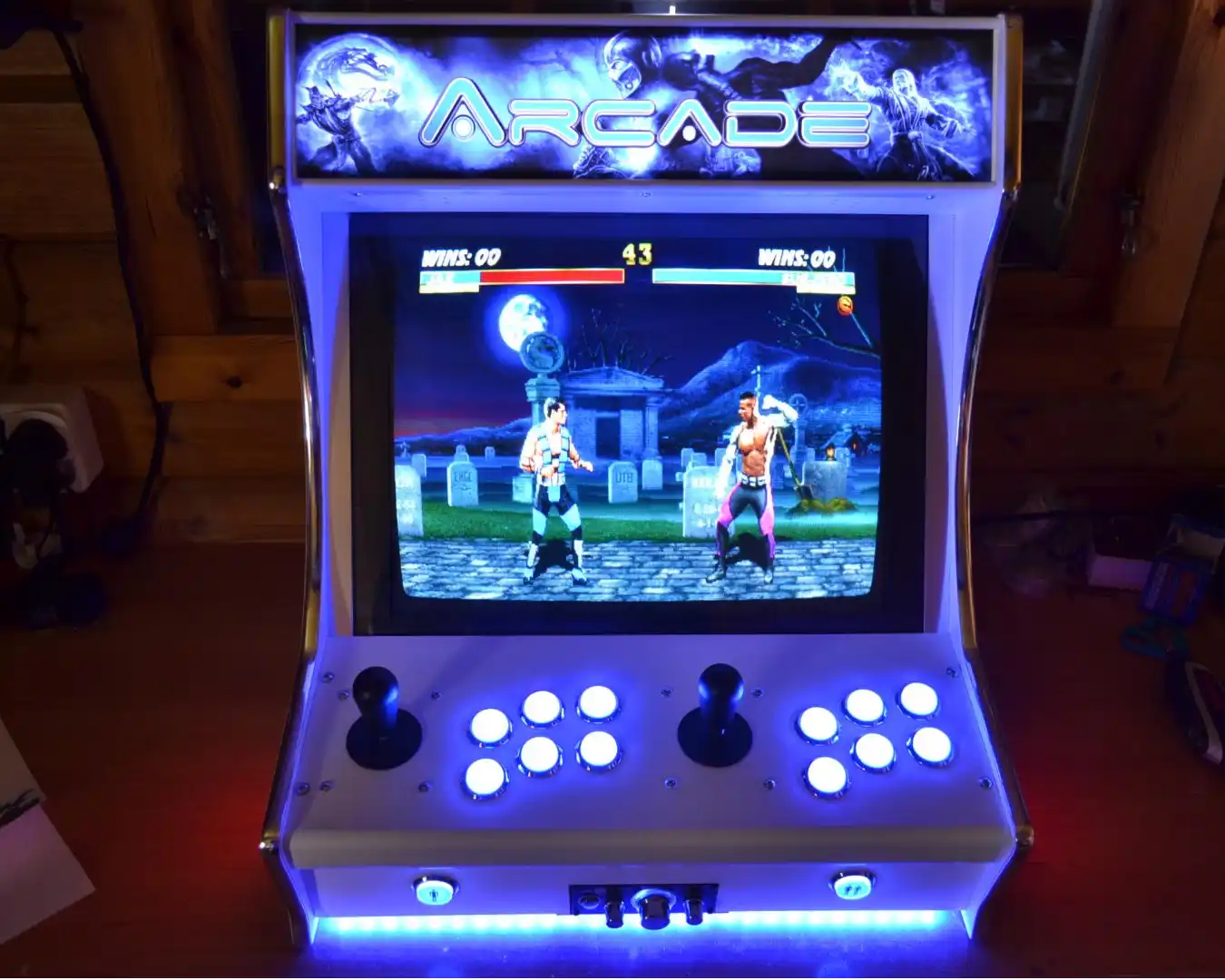
Finished Arcade Cabinet Gallery
Over the years, I’ve photographed many completed arcade cabinets in my workshop, and customers have also shared photos of their machines after receiving and setting them up.
Here are a few examples showing different cabinet designs, artwork, lighting, controls, and gaming setups.


Arcade Cabinet DIY FAQ
What size monitor should I use for an arcade cabinet?
For most classic arcade builds, a 17–19″ LCD with a 4:3 or 5:4 aspect ratio is an excellent choice. A 19″ 5:4 monitor, typically with a 1280×1024 resolution, works particularly well in compact bartop cabinets and provides a screen shape well suited to many classic arcade games.
For a vertical cabinet, mount the display in portrait orientation. This works particularly well for games originally designed for a vertical screen, including Galaga, 1942, Donkey Kong, and many classic vertical shooters.
MDF or PVC foam board: which is better for an arcade cabinet?
Both materials can produce an excellent cabinet, but they have different advantages.
- MDF (18 mm) – Affordable, rigid, widely available, and easy to machine. It gives the cabinet a solid, traditional feel but is relatively heavy, and exposed edges should be properly sealed to help protect against moisture.
- Rigid PVC Foam Board – Lighter and moisture resistant, and a sufficiently rigid grade can be very durable. For many of my own builds, I use 13 mm Foamalux.
When choosing PVC foam board, concentrate on its density, rigidity, and ability to hold screws securely rather than its country of manufacture. Very low-density foam board may not be suitable for structural cabinet panels.
Can I use a Raspberry Pi instead of a PC or Pandora Box?
Yes. A Raspberry Pi can be a compact and flexible platform for classic arcade emulation, particularly when paired with software such as RetroPie or Recalbox.
A mini PC or desktop PC provides more processing power and flexibility for demanding emulators, advanced MAME configurations, graphical filters, and more complex front ends. A Pandora Box or JAMMA-based system can be a simpler option if you want a more dedicated arcade setup.
Do I need to solder the buttons and joysticks?
Not necessarily. Many arcade controls can be connected using crimped quick-disconnect terminals, allowing buttons and microswitches to be replaced without soldering.
Encoder boards such as the Ultimarc I-PAC 2 provide terminals for connecting the control wiring, so a completely soldered wiring harness is not required. A soldering iron is still useful for custom wiring, repairs, and other electronic work.
How much does it cost to build an arcade cabinet?
The cost can vary considerably depending on the cabinet material, controls, monitor, gaming hardware, artwork, and whether you already have some of the parts.
A simple Raspberry Pi or dedicated arcade-system build can be relatively inexpensive, while a cabinet using genuine arcade controls, an I-PAC encoder, a quality monitor, and a powerful PC can cost considerably more.
The main costs to consider are:
- Cabinet material – MDF, plywood, or rigid PVC foam board
- Controls – Joysticks, buttons, switches, and encoder
- Monitor – Typically a 17–19″ LCD for the compact designs in this guide
- Gaming system – Raspberry Pi, Pandora Box/JAMMA system, mini PC, or desktop PC
- Computer hardware and storage – Particularly important for larger game libraries and more demanding emulators
- Finishing materials – Paint, vinyl, edge trim or T-molding, acrylic, artwork, and lighting
Genuine arcade components from established manufacturers such as Sanwa, Seimitsu, and Ultimarc generally cost more than generic controls, while the PC can become the largest single expense if you want to run more demanding emulators.

Final Thoughts: You Can Build Your Own Arcade Cabinet
Building your own arcade cabinet takes time and patience, but with basic DIY skills, the right tools, and the plans in this guide, you can work through the project one step at a time.
For me, one of the best moments is always switching on a newly built machine for the first time. After all the measuring, cutting, wiring, and testing, you finally get to play on something you built with your own hands.
Take your time and enjoy the process. For more arcade-building advice, technical tips, and retro gaming guides, explore the Tiny Arcade Machines blog.
Good luck with your build — and enjoy the arcade machine you created.